After completing this lesson, you'll be able to:
In this lesson, you will:
After completing this lesson, you'll be able to:
In this lesson, you will:
If you're taking a live Safe Software-hosted training course or using an on-demand lab for this course, we've already imported the content for this lesson into your FME Flow.
If you're completing this lesson with your own FME Flow, you must import the starting project with the content into your FME Flow.
See FME Flow Authoring: Instructions to Import the Starting Project for directions to import the project to your own FME Flow.
In the last two lessons, the workspace app fetched its parameter configuration when it opened, either from a JSON file in Resources or from a workspace that generated the JSON. Query strings work the other way around: whoever opens the app supplies the configuration in the URL they open it with. The app doesn't look anywhere for its configuration, so FME Flow doesn't need to maintain anything between runs.
The configuration itself is the same JSON array you have been working with: one object per parameter, each with a name and a defaultValue, choices, or both. The only difference is how it reaches the app. Instead of FME Flow reading the JSON from a source, the JSON is URL-encoded and added to the end of the app's URL. Because the configuration lives in the link, one app can launch with different default values depending on which link someone opened, and you can create those links by hand or have another application build them.
This makes an app usable as a destination rather than a starting point. For example, your asset management system raises a work order for a maintenance zone and emails the crew a link to your export app with the zone already encoded into it. They click it, and the app opens scoped to exactly that job. One app serves every work order, and you never edit it when you add a new zone. Query strings are the right choice when the values depend on who is opening the app or why: bookmarked or shared configurations, links in emails and reports, apps chained together, and apps launched from an external system that already knows the values.
They are a poor fit when every user should see the same configuration, when the values must be live, when the configuration is large, or when the values shouldn't be visible, since anyone with the link can read it in the address bar. In those cases, use one of the configuration loading methods from the previous lessons:
| Method | Where the JSON comes from | Best for |
|---|---|---|
| Resource file | A JSON file in FME Flow Resources | A shared configuration that changes occasionally |
| Workspace | A workspace that runs when the app opens | Live values, such as today's date or current choices from an API |
| URL (data source) | A web service or Data Virtualization endpoint that returns the JSON | A configuration maintained by another system |
| Query string | The URL used to open the app | Per-link values: bookmarks, shared links, chained apps, external launches |
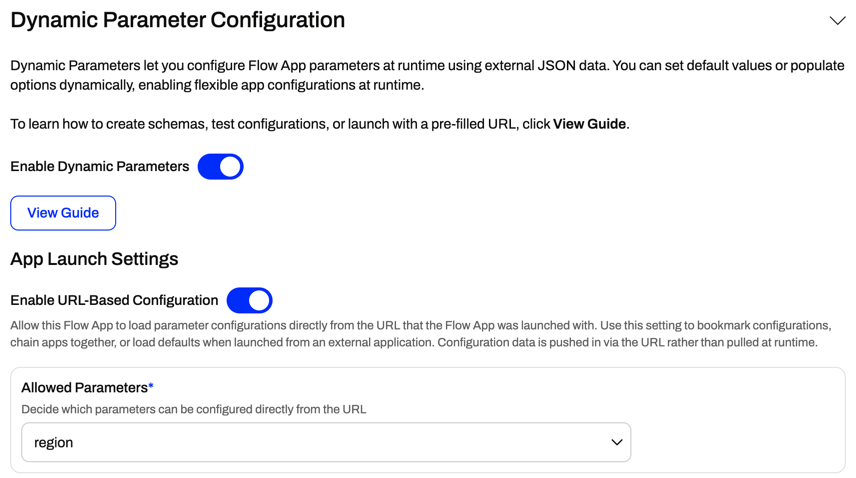
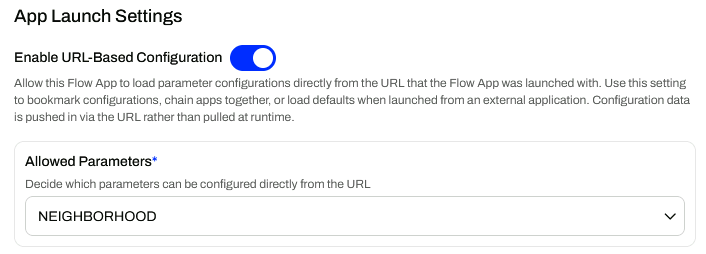
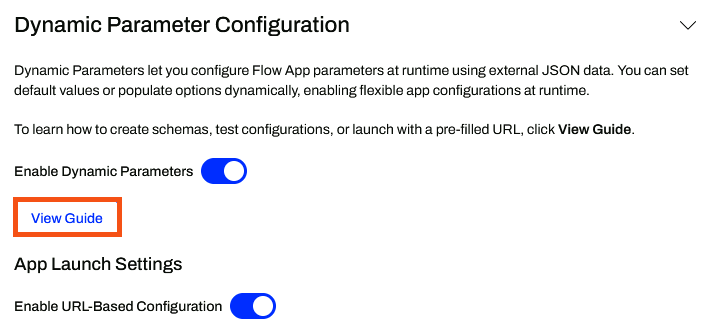
An app only reads a configuration from its URL once you allow it to. Set up URL-based configuration in the app's Dynamic Parameter Configuration section by turning on Enable Dynamic Parameters, then Enable URL-Based Configuration. You don't need Enable Configuration Loading at Launch for query strings; that option is only for the Resource, Workspace, and URL data sources from the previous lessons. Once URL-based configuration is on, the Allowed Parameters list appears, where you choose the user parameters a URL is allowed to set. The app applies these settings only after you save them.
Choose the Allowed Parameters carefully. Anyone who can read a URL can also edit it, and this list is the only thing standing between a hand-edited link and the rest of the workspace. Add only the parameters a link genuinely needs to set. For example, if your app filters by neighborhood and writes to a fixed output folder, allow the neighborhood parameter and nothing else. A parameter that is not on the list is ignored rather than rejected: a URL that tries to set one still opens the app, using the default the app already had, so test the behavior you expect rather than assuming an error will tell you something went wrong.
A query string sets the default values and choices the app opens with, and the user can still change them on the form before clicking Run. If the link should do its job without any input, the Run Immediately option under Customize can be turned on as well. The app then runs as soon as its URL is opened, with no form in between, making it closer to an endpoint: a single link that does one job with the values it was given.

A query string is the part of a URL after the question mark. It carries named values to the page being opened. A workspace app reads its configuration from a query string parameter named dynamicParameterData, and the value of that parameter is your URL-encoded JSON configuration:
https://<FME Flow hostname>/fmeserver/apps/<app-name>?dynamicParameterData=<URL-encoded JSON>The first part is the app's normal URL, the same one View App opens. The ? starts the query string, and dynamicParameterData= names the parameter the app reads, typed exactly as shown. Everything after the equals sign is the configuration. This is different from the name=value pairs you may have seen in other URLs: instead of one pair per parameter, a single value holds the whole configuration, so anything a JSON configuration can do to a parameter, including replacing an entire choice list, a URL can do too.
JSON contains characters that have special meaning in a URL or aren't allowed in one at all, so the configuration has to be URL-encoded. Encoding replaces each of these characters with a percent sign and a two-character code, so the browser passes the JSON to the app unchanged. For example, this configuration:
[{"name":"NEIGHBORHOOD","defaultValue":"Fairview"}]becomes this query string value:
%5B%7B%22name%22%3A%22NEIGHBORHOOD%22%2C%22defaultValue%22%3A%22Fairview%22%7D%5D| Character | Encoded | Character | Encoded |
|---|---|---|---|
[ |
%5B |
] |
%5D |
{ |
%7B |
} |
%7D |
" |
%22 |
: |
%3A |
, |
%2C |
space | %20 |
Letters and numbers are not encoded, so you can still read the parameter names and values in the URL. Each value sits between a pair of %22 codes, which makes it practical to edit a URL by hand: replacing Fairview with Downtown above gives you a link for a different neighborhood.
The values need encoding, as does the punctuation. A space is not valid in a URL, so Mount Pleasant has to travel as Mount%20Pleasant. Removing the space instead is a common mistake, and the app will run with a value that matches nothing and return an empty result rather than an error. It also helps to write the JSON on a single line, because every newline and indent space survives encoding as three characters: the single-line example above encodes to 81 characters, while the same configuration indented over six lines encodes to 138. Parameters that accept more than one value work the same way they do in a file or workspace configuration, taking a JSON array such as "defaultValue":["HAZARD","ICE_COVERED"].
You can build and encode a configuration entirely outside FME Flow with any JSON editor and URL encoder, and an external application can do the same programmatically, for example with JavaScript's encodeURIComponent() or Python's urllib.parse.quote(). That is how a system generates a different link for every record without anyone touching the app.
You don't have to write or encode the configuration by hand. The dynamic parameters guide, opened with View Guide in the app's Dynamic Parameter Configuration section, takes you from parameters to a finished link in one place. Its three tabs follow the order you work in.
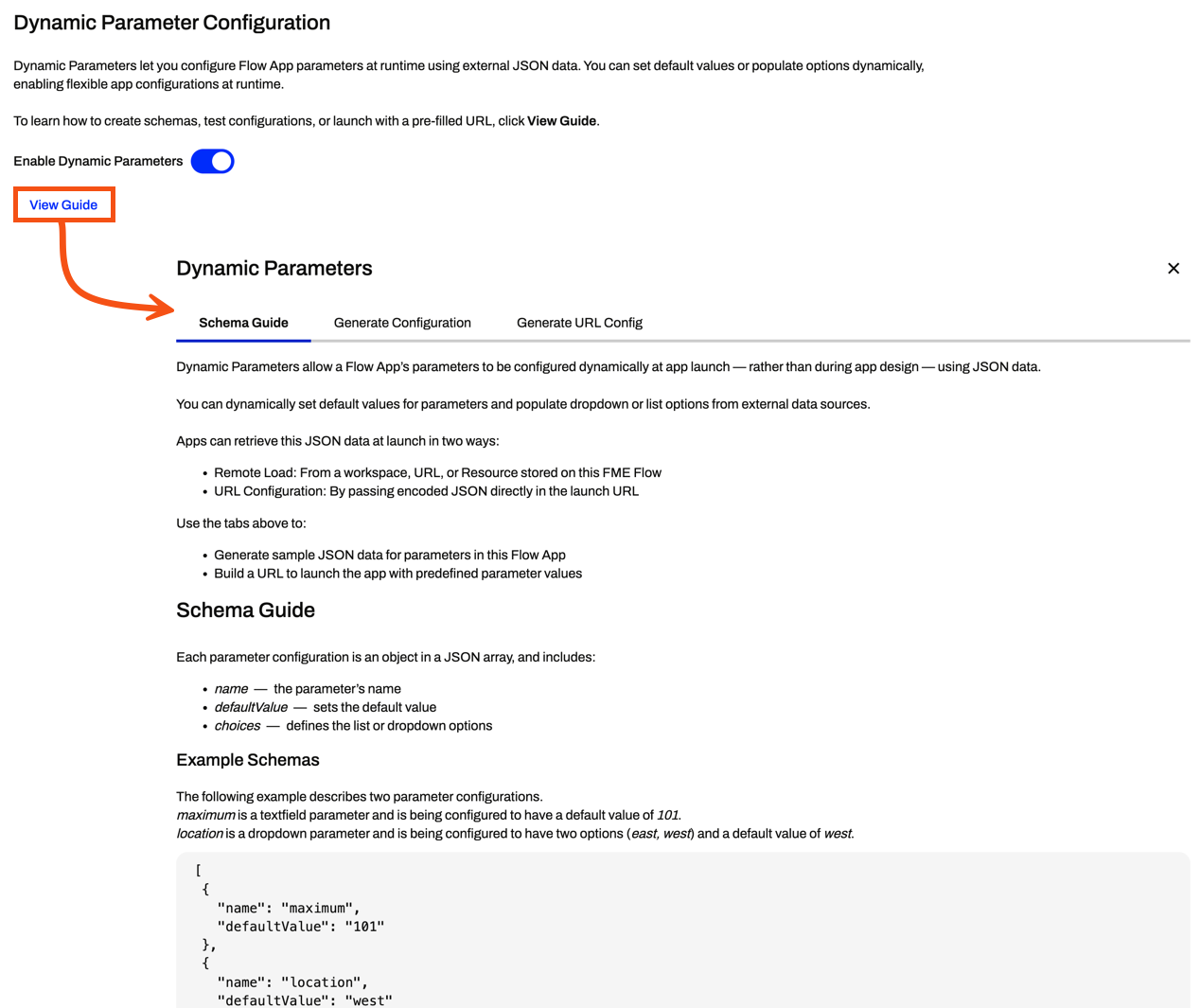
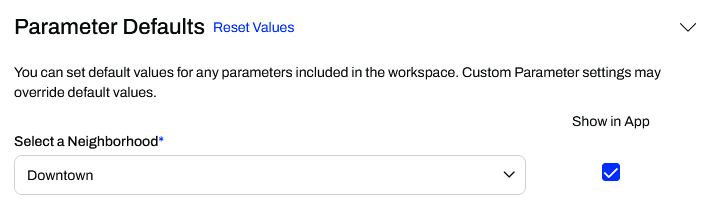
The Schema Guide tab references the JSON structure with an example, and it's where to check when you are unsure how to write a configuration for a particular parameter type. The Generate Configuration tab writes a starting configuration from the app you are editing, so you begin from valid JSON rather than a blank page. When you select the parameters to configure (for a query string, only those on your Allowed Parameters list), the Schema Sample fills with their current Parameter Defaults. You can edit the values or add choices there, use Test to confirm FME Flow reads the configuration as you expect, and use Preview to see the parameters as they will appear in the app. The finished JSON can be copied or downloaded as a file.
The Generate URL Config tab turns that configuration into a link. When you paste the JSON into the Parameter Configuration Schema box and generate the URL, FME Flow encodes the JSON and adds it to the app's URL as the dynamicParameterData value, ready to open or copy and share.

The usual approach is to generate one URL with the guide, then edit the values directly in that URL whenever you need another link. Once the app is set up, you don't need to make further changes to create new links.
The Generate URL Config tab only works once Enable URL-Based Configuration is on. A generated URL only works after the app has been saved, so if the values don't appear when you open the link, save the app and try again.

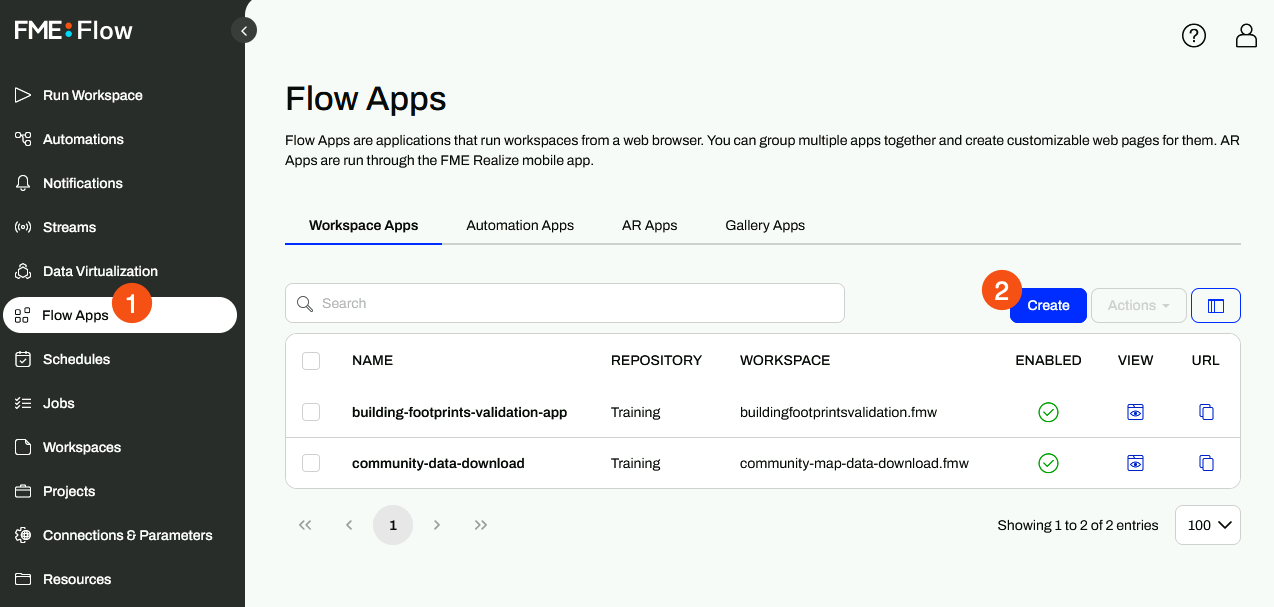
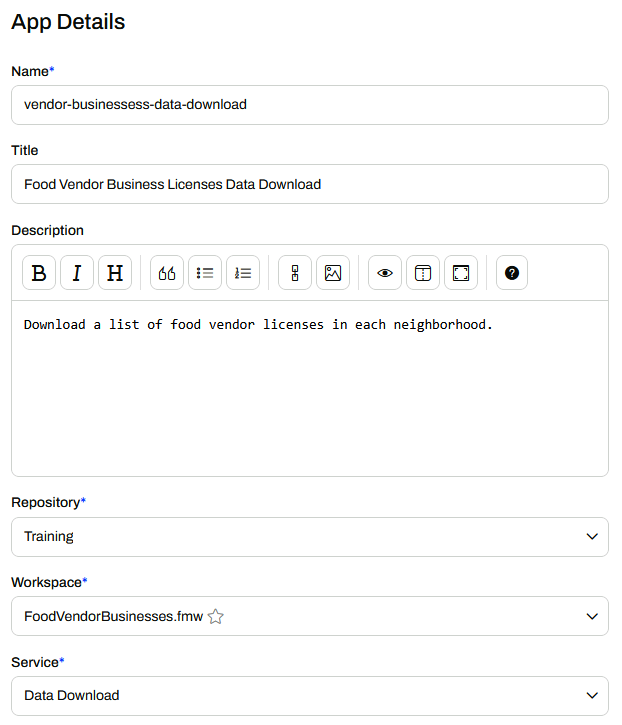
Frank, a GIS Administrator, frequently receives repeated requests for food vendor business license data. He frequently queries the data to extract the data for a specific neighborhood his colleagues request. He wants a link he can send that delivers exactly that neighborhood's data, with nothing for the recipient to fill in.
In this exercise, you will:

[{"name":"NEIGHBORHOOD","defaultValue":"Fairview"}]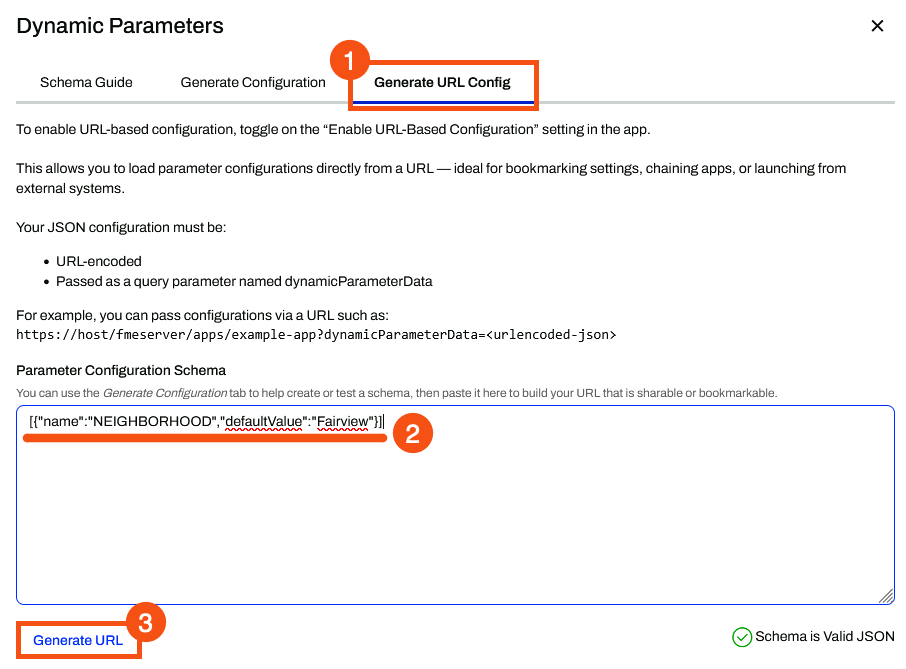




Mount%20Pleasant.West%20End.
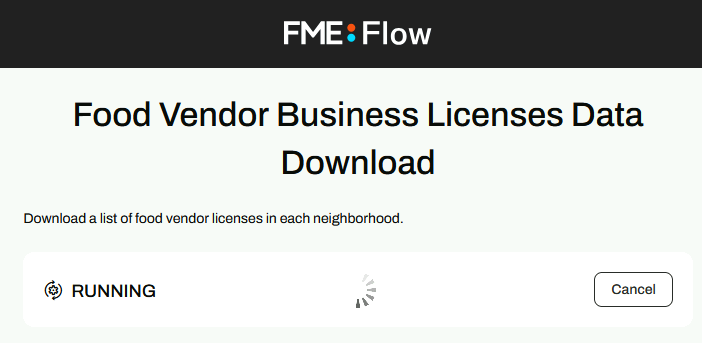


You've now used query string parameters to set parameter default values from the app URL, then triggered the app to run immediately without needing to enter parameter values or click Run. Frank can now share links with the parameter value set for the neighborhood his colleagues request, saving them both time.
If you're taking a live Safe Software-hosted training course or using an on-demand lab for this course, we've already imported the content for this lesson into your FME Flow.
If you're completing this lesson with your own FME Flow, you must import the starting project with the content into your FME Flow.
See FME Flow Authoring: Instructions to Import the Starting Project for directions to import the project to your own FME Flow.
In the last two lessons, the workspace app fetched its parameter configuration when it opened, either from a JSON file in Resources or from a workspace that generated the JSON. Query strings work the other way around: whoever opens the app supplies the configuration in the URL they open it with. The app doesn't look anywhere for its configuration, so FME Flow doesn't need to maintain anything between runs.
The configuration itself is the same JSON array you have been working with: one object per parameter, each with a name and a defaultValue, choices, or both. The only difference is how it reaches the app. Instead of FME Flow reading the JSON from a source, the JSON is URL-encoded and added to the end of the app's URL. Because the configuration lives in the link, one app can launch with different default values depending on which link someone opened, and you can create those links by hand or have another application build them.
This makes an app usable as a destination rather than a starting point. For example, your asset management system raises a work order for a maintenance zone and emails the crew a link to your export app with the zone already encoded into it. They click it, and the app opens scoped to exactly that job. One app serves every work order, and you never edit it when you add a new zone. Query strings are the right choice when the values depend on who is opening the app or why: bookmarked or shared configurations, links in emails and reports, apps chained together, and apps launched from an external system that already knows the values.
They are a poor fit when every user should see the same configuration, when the values must be live, when the configuration is large, or when the values shouldn't be visible, since anyone with the link can read it in the address bar. In those cases, use one of the configuration loading methods from the previous lessons:
| Method | Where the JSON comes from | Best for |
|---|---|---|
| Resource file | A JSON file in FME Flow Resources | A shared configuration that changes occasionally |
| Workspace | A workspace that runs when the app opens | Live values, such as today's date or current choices from an API |
| URL (data source) | A web service or Data Virtualization endpoint that returns the JSON | A configuration maintained by another system |
| Query string | The URL used to open the app | Per-link values: bookmarks, shared links, chained apps, external launches |
An app only reads a configuration from its URL once you allow it to. Set up URL-based configuration in the app's Dynamic Parameter Configuration section by turning on Enable Dynamic Parameters, then Enable URL-Based Configuration. You don't need Enable Configuration Loading at Launch for query strings; that option is only for the Resource, Workspace, and URL data sources from the previous lessons. Once URL-based configuration is on, the Allowed Parameters list appears, where you choose the user parameters a URL is allowed to set. The app applies these settings only after you save them.
Choose the Allowed Parameters carefully. Anyone who can read a URL can also edit it, and this list is the only thing standing between a hand-edited link and the rest of the workspace. Add only the parameters a link genuinely needs to set. For example, if your app filters by neighborhood and writes to a fixed output folder, allow the neighborhood parameter and nothing else. A parameter that is not on the list is ignored rather than rejected: a URL that tries to set one still opens the app, using the default the app already had, so test the behavior you expect rather than assuming an error will tell you something went wrong.
A query string sets the default values and choices the app opens with, and the user can still change them on the form before clicking Run. If the link should do its job without any input, the Run Immediately option under Customize can be turned on as well. The app then runs as soon as its URL is opened, with no form in between, making it closer to an endpoint: a single link that does one job with the values it was given.
A query string is the part of a URL after the question mark. It carries named values to the page being opened. A workspace app reads its configuration from a query string parameter named dynamicParameterData, and the value of that parameter is your URL-encoded JSON configuration:
https://<FME Flow hostname>/fmeserver/apps/<app-name>?dynamicParameterData=<URL-encoded JSON>The first part is the app's normal URL, the same one View App opens. The ? starts the query string, and dynamicParameterData= names the parameter the app reads, typed exactly as shown. Everything after the equals sign is the configuration. This is different from the name=value pairs you may have seen in other URLs: instead of one pair per parameter, a single value holds the whole configuration, so anything a JSON configuration can do to a parameter, including replacing an entire choice list, a URL can do too.
JSON contains characters that have special meaning in a URL or aren't allowed in one at all, so the configuration has to be URL-encoded. Encoding replaces each of these characters with a percent sign and a two-character code, so the browser passes the JSON to the app unchanged. For example, this configuration:
[{"name":"NEIGHBORHOOD","defaultValue":"Fairview"}]becomes this query string value:
%5B%7B%22name%22%3A%22NEIGHBORHOOD%22%2C%22defaultValue%22%3A%22Fairview%22%7D%5D| Character | Encoded | Character | Encoded |
|---|---|---|---|
[ |
%5B |
] |
%5D |
{ |
%7B |
} |
%7D |
" |
%22 |
: |
%3A |
, |
%2C |
space | %20 |
Letters and numbers are not encoded, so you can still read the parameter names and values in the URL. Each value sits between a pair of %22 codes, which makes it practical to edit a URL by hand: replacing Fairview with Downtown above gives you a link for a different neighborhood.
The values need encoding, as does the punctuation. A space is not valid in a URL, so Mount Pleasant has to travel as Mount%20Pleasant. Removing the space instead is a common mistake, and the app will run with a value that matches nothing and return an empty result rather than an error. It also helps to write the JSON on a single line, because every newline and indent space survives encoding as three characters: the single-line example above encodes to 81 characters, while the same configuration indented over six lines encodes to 138. Parameters that accept more than one value work the same way they do in a file or workspace configuration, taking a JSON array such as "defaultValue":["HAZARD","ICE_COVERED"].
You can build and encode a configuration entirely outside FME Flow with any JSON editor and URL encoder, and an external application can do the same programmatically, for example with JavaScript's encodeURIComponent() or Python's urllib.parse.quote(). That is how a system generates a different link for every record without anyone touching the app.
You don't have to write or encode the configuration by hand. The dynamic parameters guide, opened with View Guide in the app's Dynamic Parameter Configuration section, takes you from parameters to a finished link in one place. Its three tabs follow the order you work in.
The Schema Guide tab references the JSON structure with an example, and it's where to check when you are unsure how to write a configuration for a particular parameter type. The Generate Configuration tab writes a starting configuration from the app you are editing, so you begin from valid JSON rather than a blank page. When you select the parameters to configure (for a query string, only those on your Allowed Parameters list), the Schema Sample fills with their current Parameter Defaults. You can edit the values or add choices there, use Test to confirm FME Flow reads the configuration as you expect, and use Preview to see the parameters as they will appear in the app. The finished JSON can be copied or downloaded as a file.
The Generate URL Config tab turns that configuration into a link. When you paste the JSON into the Parameter Configuration Schema box and generate the URL, FME Flow encodes the JSON and adds it to the app's URL as the dynamicParameterData value, ready to open or copy and share.
The usual approach is to generate one URL with the guide, then edit the values directly in that URL whenever you need another link. Once the app is set up, you don't need to make further changes to create new links.
The Generate URL Config tab only works once Enable URL-Based Configuration is on. A generated URL only works after the app has been saved, so if the values don't appear when you open the link, save the app and try again.
Frank, a GIS Administrator, frequently receives repeated requests for food vendor business license data. He frequently queries the data to extract the data for a specific neighborhood his colleagues request. He wants a link he can send that delivers exactly that neighborhood's data, with nothing for the recipient to fill in.
In this exercise, you will:
[{"name":"NEIGHBORHOOD","defaultValue":"Fairview"}]
Mount%20Pleasant.West%20End.
You've now used query string parameters to set parameter default values from the app URL, then triggered the app to run immediately without needing to enter parameter values or click Run. Frank can now share links with the parameter value set for the neighborhood his colleagues request, saving them both time.
